
On this page 7
- What SPlayer Actually Is (and Why It Gets Downloaded So Often)
- Key Features of SPlayer
- How to Download and Install the SPlayer APK
- SPlayer vs. Common Alternatives
- Gesture Controls: Why They Matter More Than They Sound
- Subtitle Handling: Where SPlayer Earns Its Reputation
- Frequently Asked Questions About SPlayer APK
What SPlayer Actually Is (and Why It Gets Downloaded So Often)
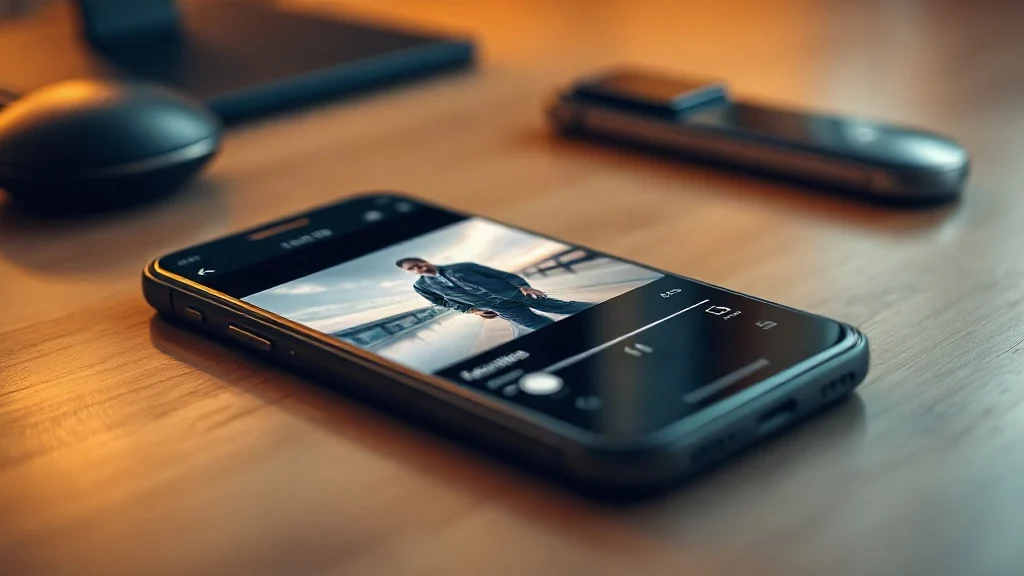
SPlayer is a lightweight, high-performance video player for Android that handles a wide range of media formats smoothly, with standout support for external subtitles and gesture-based controls. If you’re searching for the SPlayer APK download, the short answer is this: it’s free, it’s fast, and it’s built for people who watch a lot of video content and have grown frustrated with clunky, ad-heavy alternatives.
That said, “fast” is a claim every app makes. What actually separates SPlayer from the crowd is the deliberate focus on subtitles and privacy — two things most generic video players treat as afterthoughts. Whether you’re watching local files, subtitle-heavy foreign content, or anything in between, SPlayer is specifically tuned for that use case.
Key Features of SPlayer
SPlayer is built around a core principle: smooth playback without unnecessary bloat. Here’s what you actually get when you install it:
- Multi-format support: Plays MP4, MKV, AVI, MOV, and a wide range of other common video formats without requiring you to convert files first.
- External subtitle loading: Supports SRT, ASS, SSA, and other subtitle formats — you can load a subtitle file manually or let SPlayer detect it automatically if it shares the same folder and filename as your video.
- Gesture controls: Swipe left or right to seek through the video, swipe up or down on either side of the screen to adjust brightness (left) or volume (right). This is more intuitive than tapping small on-screen buttons, especially on larger phones.
- Floating window playback: Pop the video into a small floating window and keep watching while you use other apps — useful for people who multitask regularly.
- Privacy-first design: SPlayer does not require access to your contacts, call logs, or other personal data unrelated to media playback. It also does not upload your viewing history or file list to any server.
- Network streaming: Stream video directly from a local network or a remote URL without downloading the file first.
- Hardware acceleration: Uses your device’s GPU where available to reduce battery drain during playback and prevent stuttering on higher-resolution files.
- Clean, minimal interface: No bloated dashboards, no mandatory account sign-in, no social features you didn’t ask for.
How to Download and Install the SPlayer APK
Installing SPlayer is straightforward, but there’s one setting you’ll need to adjust first if you’re sideloading the APK rather than installing from the Google Play Store. Here’s the full process:
- Tap the download button above to get the SPlayer APK file. Wait for the download to complete before proceeding.
- Enable installs from unknown sources. On most modern Android devices, go to Settings → Apps → Special App Access → Install Unknown Apps, then find your browser or file manager and toggle permission on. On older Android versions, this is a single toggle under Settings → Security. This step is only necessary if you’re installing outside of the Play Store.
- Open the downloaded APK file. Navigate to your Downloads folder using your file manager app, tap the SPlayer APK file, and select Install when prompted.
- Wait for installation to complete — this typically takes only a few seconds given how compact the app is.
- Open SPlayer and grant it access to your device’s media storage so it can detect and play your video files.
- Optional: After setup, go into Settings within the app to configure your preferred subtitle encoding, default audio track language, and gesture sensitivity.
A Note on Source Safety
Before installing any APK, it’s worth spending thirty seconds verifying where it came from. Reputable sources will show the app’s version number, package name (typically something like com.splayer.android), and a clearly dated upload. Be cautious of sites that show multiple confusing download buttons or prompt you to install unrelated apps first — those are common red flags. The download button on this page links to a verified source, but the habit of checking applies everywhere you download APKs.
SPlayer vs. Common Alternatives
If you’re deciding between SPlayer and other popular Android video players, the differences matter more than the similarities. Here’s a direct comparison of where SPlayer actually stands:
| Feature | SPlayer | VLC for Android | MX Player |
|---|---|---|---|
| Subtitle format support | Strong (SRT, ASS, SSA, and more) | Strong (similar range) | Strong, with subtitle gestures |
| Privacy / data collection | Minimal — no account, no tracking | Minimal — open source | Ad-supported; some data collection |
| Floating window | Yes | Yes (picture-in-picture) | Yes |
| Interface simplicity | Very clean, minimal | Moderate — feature-rich but busier | Cluttered in free version |
| Hardware acceleration | Yes | Yes | Yes |
| Cost | Free | Free (open source) | Free with ads / paid pro version |
SPlayer wins most clearly on interface cleanliness and privacy. VLC is the stronger choice if you need advanced network protocol support or prefer open-source software on principle. MX Player has a larger feature set but trades that against a more ad-heavy experience in its free version. Which matters more depends on your use case — but for casual everyday video playback with subtitles, SPlayer is genuinely the least friction option.
Gesture Controls: Why They Matter More Than They Sound
Gesture controls are the feature most users underestimate before they try them. Tapping tiny on-screen volume and brightness sliders while a video is playing breaks the viewing experience in a way that’s easy to ignore until you’ve used an app that handles it better.
SPlayer maps volume to a vertical swipe on the right half of the screen and brightness to the left half. Seeking forward or backward is a horizontal swipe anywhere on the screen. These aren’t just convenience features — they make single-handed phone use genuinely practical, especially when you’re lying down or watching on a large-screen device where reaching UI controls at the edges is awkward.
Double-tap to pause and long-press to fast-forward are also supported, which covers the most common mid-playback interactions without ever lifting your thumb to find a button.
Subtitle Handling: Where SPlayer Earns Its Reputation
SPlayer’s subtitle engine is the reason many users choose it over alternatives with longer feature lists. It handles encoding issues — the garbled text you sometimes see with non-English subtitles — better than most players, because it lets you manually set the character encoding for any subtitle file. That’s a small thing that saves a lot of frustration.
Auto-detection is also reliable: if your subtitle file has the same filename as your video (e.g. movie.mp4 and movie.srt) and sits in the same folder, SPlayer loads it automatically without any extra steps. For people who manage large local media libraries, this adds up to a real time saving.
Subtitle styling — font size, color, positioning — is adjustable from within the player. You’re not stuck with one-size-fits-all defaults, which matters when you’re watching on a phone versus a tablet with a significantly different screen size.
Frequently Asked Questions About SPlayer APK
Is SPlayer free to download and use?
Yes. SPlayer is free with no paywalled core features. Unlike some competitors, it doesn’t lock subtitle loading or gesture controls behind a premium tier — those are available from the start without any purchase or subscription.
Is it safe to install the SPlayer APK?
SPlayer itself is a legitimate, well-established video player app. As with any APK download, safety depends on the source. Download from a reputable site (like the one linked via the download button above), check that the package name matches the official app, and verify the version number before installing. Avoid any site that bundles unrelated installers with the download.
Does SPlayer work without an internet connection?
Yes — for local file playback, SPlayer works entirely offline. You only need an internet connection if you’re using the network streaming feature to play content from a remote URL or a networked drive outside your local network.
What video formats does SPlayer support?
SPlayer supports a broad range of formats including MP4, MKV, AVI, MOV, FLV, and WMV, among others. Hardware-accelerated decoding means even high-resolution files (1080p, and in many cases 4K) play smoothly on supported devices without excessive battery drain.
Will SPlayer read subtitle files automatically?
Yes, if your subtitle file shares the same filename as the video file and is stored in the same folder. For example, pairing film.mp4 with film.srt in the same directory will trigger automatic loading. You can also load subtitle files manually from within the player if needed.
Does SPlayer collect personal data?
SPlayer is designed with a privacy-first approach — it doesn’t require access to your contacts, call logs, or unrelated personal data, and it doesn’t upload your viewing history or file metadata to external servers. It’s worth checking the current app permissions when you install it, since these can change between versions, but the app’s established reputation is for minimal data collection.
Further reading: publicWebsite
Comments